> ## Documentation Index
> Fetch the complete documentation index at: https://trunk-4cab4936-mintlify-9f2501e3.mintlify.site/llms.txt
> Use this file to discover all available pages before exploring further.
# Jasmine
> A guide for generating Trunk-compatible test reports for Jasmine tests
You can automatically [detect and manage flaky tests](../../detection/) in your Jasmine projects by integrating with Trunk. This document explains how to configure Jasmine to output JUnit XML reports that can be uploaded to Trunk for analysis.
## Setup steps
Work through the steps below in order. Once you've finished the last one, you'll be ready to move on to [configure uploads in CI](../ci-providers/).
Generate a compatible test report} />
Configure the report file path or glob} />
Disable retries for better detection accuracy} />
Test uploads locally} />
## Generating Reports
Before integrating with Trunk, you need to generate Trunk-compatible reports. For Jasmine, the easiest approach is to generate XML reports.
First, install the [`jasmine-reporters`](https://www.npmjs.com/package/jasmine-reporters) package:
```shell theme={null}
npm install --save-dev jasmine-reporters
```
### In-Browser tests
When used for in-browser tests, the reporters are registered on a `jasmineReporters` object in the global scope (i.e. `window.jasmineReporters`). You can register it like this in your Jasmine config under `/spec/support/jasmine.mjs`:
```javascript title="/spec/support/jasmine.mjs" theme={null}
import jasmineReporters from 'jasmine-reporters';
var junitReporter = new jasmineReporters.JUnitXmlReporter({
savePath: "test-reports",
consolidateAll: false
});
jasmine.getEnv().addReporter(junitReporter);
```
### NodeJS
In Node.js, `jasmine-reporters` exports an object with all the reporters. You can register it like this in your Jasmine config under `/spec/support/jasmine.mjs`:
```javascript theme={null}
var reporters = require('jasmine-reporters');
var junitReporter = new reporters.JUnitXmlReporter({
savePath: "test-reports",
consolidateAll: false
});
jasmine.getEnv().addReporter(junitReporter)
```
### Report File Path
Jasmine will generate an XML report at the location specified by the `savePath` property. In the examples above, the XML report can be located with the glob `test-reports/*.xml`.
### Disable Retries
You need to disable automatic retries if you previously enabled them. Retries compromise the accurate detection of flaky tests.
If you're using a package like [protractor-flake](https://www.npmjs.com/package/protractor-flake), disable it to get more accurate results from Trunk. Instead, you can mitigate flaky tests using the [Quarantining](../../quarantining/) feature in Trunk.
## Try It Locally
### The Validate Command
You can validate your test reports using the [Trunk Analytics CLI](../../reference/cli-reference). If you don't have it installed already, you can install and run the `validate` command like this:
```bash Linux (x64) theme={null}
SKU="trunk-analytics-cli-x86_64-unknown-linux.tar.gz"
curl -fL --retry 3 \
"https://github.com/trunk-io/analytics-cli/releases/latest/download/${SKU}" \
| tar -xz
chmod +x trunk-analytics-cli
./trunk-analytics-cli validate --junit-paths "./test-reports/*.xml"
```
```bash Linux (arm64) theme={null}
SKU="trunk-analytics-cli-aarch64-unknown-linux.tar.gz"
curl -fL --retry 3 \
"https://github.com/trunk-io/analytics-cli/releases/latest/download/${SKU}" \
| tar -xz
chmod +x trunk-analytics-cli
./trunk-analytics-cli validate --junit-paths "./test-reports/*.xml"
```
```bash macOS (arm64) theme={null}
SKU="trunk-analytics-cli-aarch64-apple-darwin.tar.gz"
curl -fL --retry 3 \
"https://github.com/trunk-io/analytics-cli/releases/latest/download/${SKU}" \
| tar -xz
chmod +x trunk-analytics-cli
./trunk-analytics-cli validate --junit-paths "./test-reports/*.xml"
```
```bash macOS (x64) theme={null}
SKU="trunk-analytics-cli-x86_64-apple-darwin.tar.gz"
curl -fL --retry 3 \
"https://github.com/trunk-io/analytics-cli/releases/latest/download/${SKU}" \
| tar -xz
chmod +x trunk-analytics-cli
./trunk-analytics-cli validate --junit-paths "./test-reports/*.xml"
```
**This will not upload anything to Trunk**. To improve detection accuracy, you should **address all errors and warnings** before proceeding to the next steps.
### Test Upload
Before modifying your CI jobs to automatically upload test results to Trunk, try uploading a single test run manually.
You make an upload to Trunk using the following command:
```sh theme={null}
./trunk-analytics-cli upload --junit-paths "./test-reports/*.xml" \
--org-url-slug \
--token
```
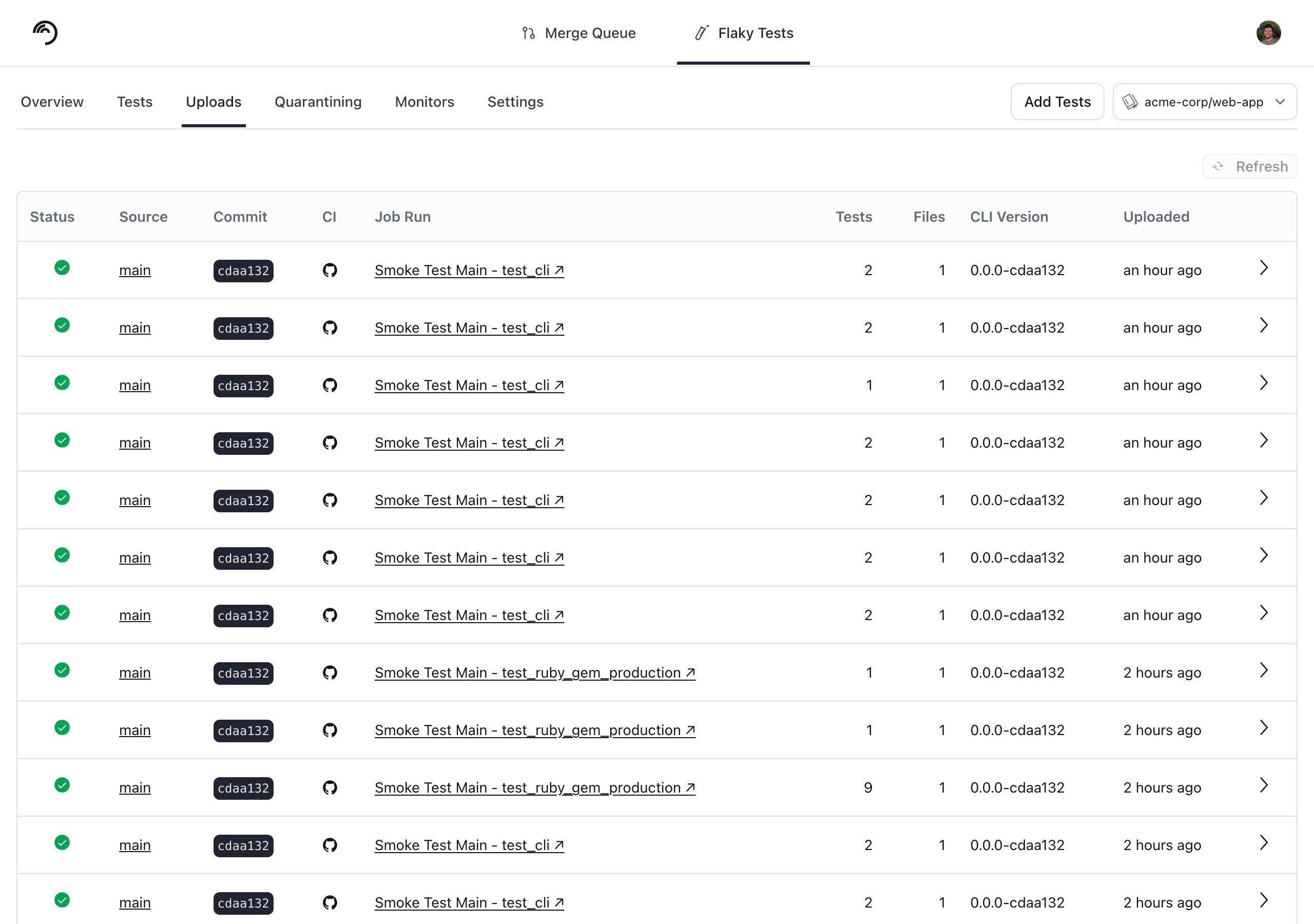
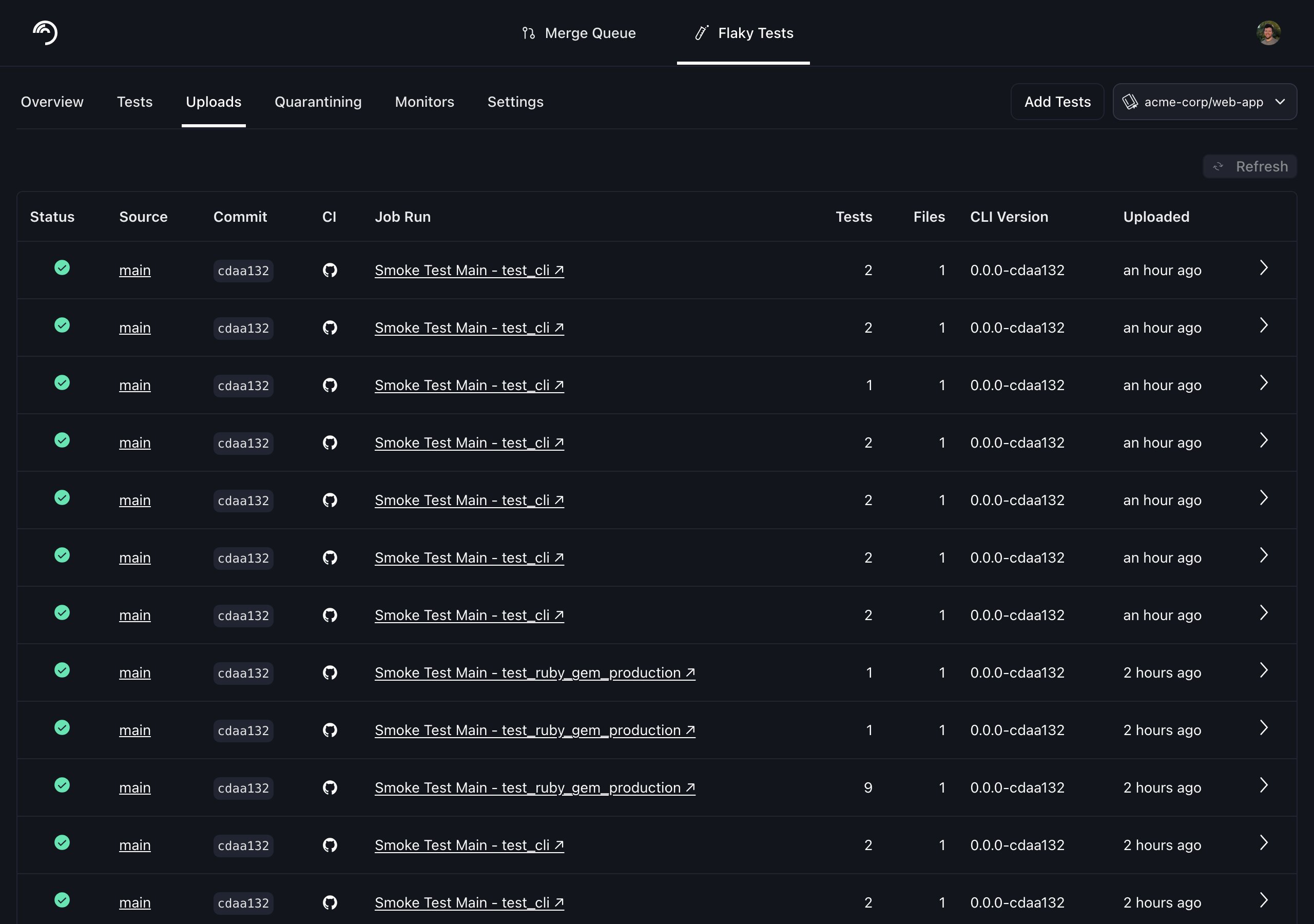
You can find your Trunk organization slug and token in the settings or by following these [instructions](/flaky-tests/get-started/ci-providers/otherci#id-1.-store-a-trunk_token-secret-in-your-ci-system). After your upload, you can verify that Trunk has received and processed it successfully in the **Uploads** tab. Warnings will be displayed if the report has issues.
 ## Next Steps
Configure your CI to upload test runs to Trunk. Find the guides for your CI framework below:
## Next Steps
Configure your CI to upload test runs to Trunk. Find the guides for your CI framework below: